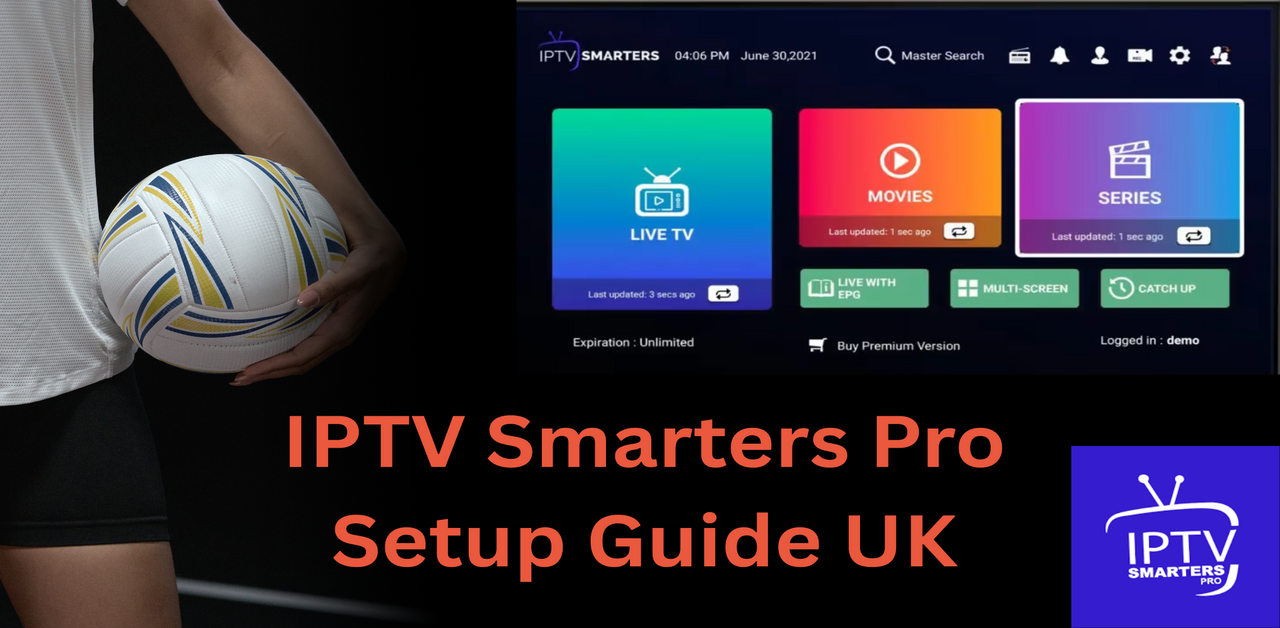
IPTV Smarters Pro UK: Setup Guide for IPTV Subscription
If you have been looking into IPTV UK services, chances are you have already come across the name IPTV Smarters Pro. It keeps popping up in setup guides, forum discussions, and provider recommendations across the United Kingdom. But what exactly is it, why is everyone talking about it, and how do you actually use it with your IPTV UK subscription?
This is an app-specific setup guide for IPTV Smarters Pro. It explains where to check for a legitimate player download, how to enter authorised M3U or account credentials, and how to troubleshoot the app. For broader instructions across devices, follow the existing installation-guides link later in this article.
What Is IPTV Smarters Pro?
IPTV Smarters Pro is an IPTV media player, not a content provider. Compatible versions can use account credentials or M3U playlists supplied by an authorised service. Exact device support, programme guides, catch-up features and app-store availability vary by publisher version, operating system and location; confirm the current listing for your device before downloading.
Many users consider IPTV Smarters-style players because they can organise streams and playlists, but ease of use, updates and compatibility differ by version. A player’s availability or popularity does not establish that a particular channel source is licensed.
IPTV Smarters Pro Features and Limitations
There are dozens of IPTV player apps available, so what makes IPTV Smarters Pro stand out among IPTV UK users specifically?
Clean and User-Friendly Interface
The layout of IPTV Smarters Pro is straightforward. Channels are organised into categories, sports sections are easy to find, and the EPG (Electronic Programme Guide) shows you what is on now and what is coming up next, just like a regular TV guide. For someone switching from traditional cable or satellite, this familiar layout makes the transition much smoother.
Supports Multiple Providers and Profiles
One of the best features of IPTV Smarters Pro is that you can add multiple IPTV accounts or profiles within a single app. This means if you are testing different UK IPTV services or managing accounts for different family members, everything is available in one place without switching between apps.
Catch-Up and VOD Support
Catch-up TV and video on demand are available only when the selected player version and your authorised provider support them. Some subscriptions supply live channels only; check what is actually included before expecting catch-up, films or series.
External Player Compatibility
For users who prefer a different video player for playback, IPTV Smarters Pro allows you to open streams in external players like MX Player or VLC. This gives you extra flexibility if you want more control over your viewing experience.
How to Check and Install a Compatible IPTV Player
Downloading the app is quick and straightforward regardless of which device you use.
On Android or Android TV Box
On Android, search the official Google Play Store for the publisher and supported player version. Availability, naming and price may vary by region and device; if the exact app is not listed, do not install a similarly named application without checking the publisher.
On Amazon Firestick or Fire TV
Go to the search bar on your Firestick home screen and check whether a compatible IPTV player is listed in the Amazon Appstore. Availability changes by device and region; do not assume IPTV Smarters Pro is offered. Installing an APK from outside the store is optional and carries security risks, so follow only verified publisher instructions if an alternative installer is needed.
For instructions tailored to Amazon Fire TV, see our Firestick setup guide.
On iPhone or iPad
On iPhone or iPad, search the Apple App Store for a compatible IPTV player and verify the developer, supported version and current availability. Avoid assuming differently named apps are produced by the same publisher.
On Windows PC or Laptop
For Windows, confirm that the application publisher currently offers a Windows version, download only from a verifiable publisher source, and review the installer and permissions before running it. Do not assume all versions support Windows.
How to Set Up IPTV Smarters Pro with Your IPTV UK Subscription
After installing a compatible version, use the login method supported by the app and your authorised provider. Setup time depends on the device, app version, credentials and activation; it is not guaranteed to take only a few minutes.
Open the App and Select Login Method
When you first open IPTV Smarters Pro, you will be asked how you want to add your service. You will typically see two options: login with Xtream Codes API or add an M3U URL. Most best IPTV provider UK services will provide you with one of these two options after you sign up.
If your provider supplies an M3U playlist, our M3U playlist setup guide explains the format and setup process.
Enter Your Provider Details
If your provider gave you a username, password, and server URL, select the Xtream Codes option and enter those details. If your provider gave you an M3U link, select that option and paste the link in. Give your profile a name such as "Stream IPTV UK" and tap Add User.
Wait for Channels to Load
The app will now contact your provider's server and load your full channel list. Depending on your internet connection speed and the size of your channel package, this may take anywhere from a few seconds to a couple of minutes.
Browse and Start Watching
Once loaded, your channels will be organised into categories. You can browse live TV, access the EPG guide, explore VOD movies and series, and use the search function to find specific channels or content quickly.
For detailed setup instructions across different devices, the Stream IPTV UK Installation Guides page covers everything you need with clear, step-by-step directions for each platform.
Tips for Getting the Best Experience on IPTV Smarters Pro
Getting the app installed is only half the job. Here are a few tips to make sure your IPTV UK experience through IPTV Smarters Pro is as smooth as possible.
Use a Wired Connection Where Possible
Wi-Fi works fine for most viewing, but a wired Ethernet connection will give you more stable streams during high-demand events like live Premier League matches. If your device does not have an Ethernet port, a powerline adapter is an affordable and effective solution used by many UK IPTV subscribers.
Keep the App Updated
IPTV Smarters Pro receives regular updates that fix bugs and improve performance. Make sure auto-updates are turned on or check manually every few weeks to ensure you are running the latest version.
Clear Cache Regularly
If the player becomes unresponsive or behaves unexpectedly, check for updates and consider clearing its cache using the device settings. Routine cache clearing every few weeks is not universally necessary, and clearing app data may remove saved settings.
Use the EPG for a Better TV Experience
Take a few minutes to set up the Electronic Programme Guide inside the app. It transforms your IPTV subscription UK experience from a basic channel list into something that genuinely feels like a proper TV service with scheduling information at your fingertips.
Ready to Get Started?
If you do not yet have an active IPTV UK subscription to use with a compatible player, compare your options before paying for a long-term plan. Stream IPTV UK publishes trial information, but a trial does not guarantee continuous playback, full access to every programme or that a provider has rights to each channel. Check the specific terms, content authorisation and compatibility with your device.
Before choosing a plan, check the current free trial information and applicable conditions.
IPTV Smarters Pro is one of the best tools available for UK IPTV users, and paired with the right provider, it turns any screen in your home into a powerful entertainment hub. Once you get it set up, you will wonder how you ever put up with expensive cable contracts.
