Iptv Smarters Pro Samsung
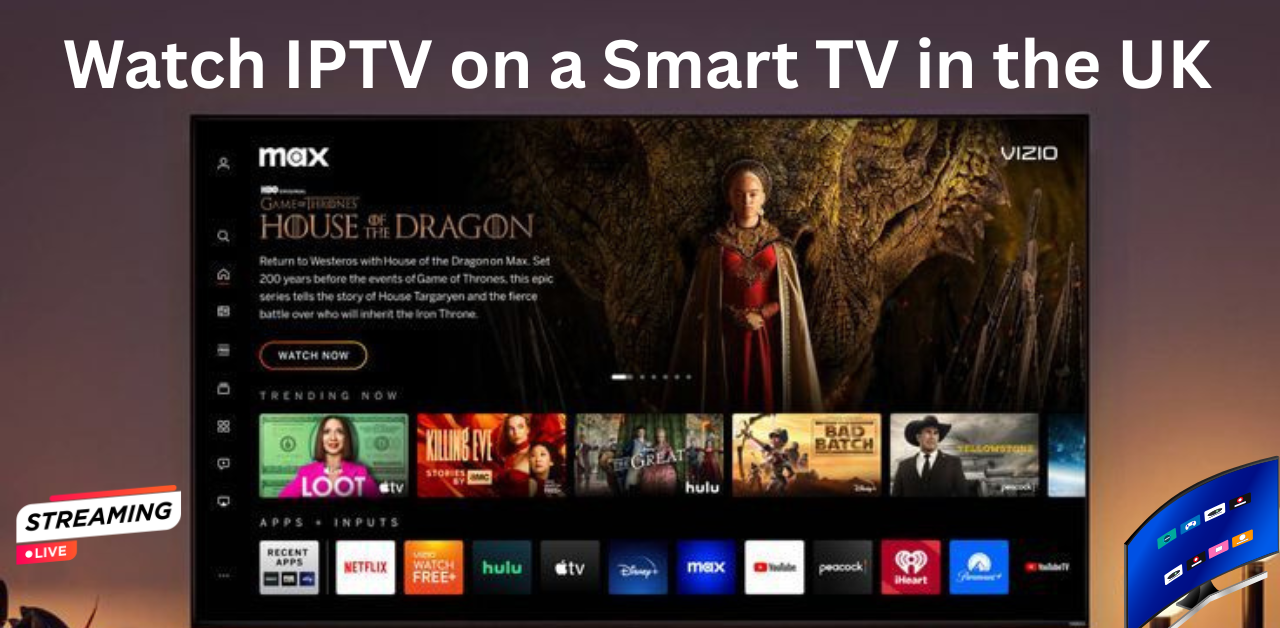
Your smart TV is already one of the most powerful entertainment devices in your home. But if you are only using it for built-in apps, you are leaving a huge amount of its potential untapped. Setting up IPTV UK on your smart TV unlocks thousands of live channels, premium sports, movies, and on-demand content, all displayed on your biggest screen in brilliant HD or 4K quality. This complete guide walks you through exactly how to do it, covering Samsung, LG, Sony, and other popular smart TV brands used across the UK.
Why Smart TVs Are Ideal for IPTV UK
A smart TV is the most natural home for an IPTV UK service. You get the biggest screen in your house, the best picture quality, and a built-in internet connection, everything you need to stream IPTV content at its very best. Unlike using a smartphone or tablet, watching IPTV UK on your smart TV delivers the kind of viewing experience that genuinely rivals and often surpasses what traditional satellite or cable TV used to offer.
Smart TVs also remove the need for additional streaming hardware in many cases. Depending on your TV brand and model, you may be able to install an IPTV player app directly from your TV's own app store, enter your IPTV UK subscription credentials, and be watching your favourite channels within minutes, all without plugging in any extra devices.
What You Need Before You Start
Before you begin the setup process, make sure you have the following ready:
A smart TV connected to your home internet, either via Wi-Fi or a wired Ethernet cable. A stable broadband connection of at least 15 Mbps for HD streaming or 25 Mbps and above for 4K content. An active IPTV UK subscription with your login credentials, including your server URL, username, and password. These are provided by your provider when you sign up.
If you do not yet have an IPTV UK subscription, you can visit Stream IPTV UK to get started. A free trial is available, meaning you can test the full service on your smart TV before committing to any payment.
For step-by-step setup instructions tailored to specific devices and apps, the Stream IPTV UK Installation Guides page has everything you need in one place.
Setting Up IPTV on a Samsung Smart TV
Samsung is the most popular smart TV brand in the UK, and the good news is that setting up IPTV UK on a Samsung TV is genuinely straightforward. Samsung smart TVs run on the Tizen operating system, and models from 2017 onwards are fully compatible with the most popular IPTV player apps.
Installing IPTV Smarters Pro on Samsung
From your Samsung TV home screen, press the Home button on your remote and open Smart Hub. Navigate to the Apps section and use the search function to find IPTV Smarters Pro. Select the app from the results and click Install. Once installation is complete, open the app.
On the welcome screen, select Add New User and choose Login with Xtream Codes API. Enter a name for your account, then input your server URL, username, and password exactly as provided by your IPTV UK provider. Tap Add User and your full channel list will load automatically. Your live TV channels, sports content, Video on Demand library, and Electronic Programme Guide will all be ready to use within seconds.
Using Smart IPTV on Samsung
Another popular option for Samsung users is the Smart IPTV app, which is available directly in the Samsung App Store. Open the app and you will see a unique MAC address displayed on your screen. On a separate device such as your phone or laptop, visit the activation page provided by the app, enter the MAC address, and input your IPTV UK provider's M3U playlist URL. Return to your TV, restart the app, and your channels will load automatically.
Setting Up IPTV on an LG Smart TV
LG smart TVs run on the webOS operating system. Models running webOS 4.0 and above, which covers most LG TVs from 2019 onwards, are fully compatible with IPTV Smarters Pro and can install it directly from the LG Content Store.
From your LG TV home screen, press the Home button on your LG Magic Remote. Open the LG Content Store and use the search bar to find IPTV Smarters Pro. Install the app and open it once it is ready. Follow the same steps as described for Samsung above, entering your Xtream Codes login details to load your IPTV UK channel list.
For older LG webOS models that may not support IPTV Smarters Pro directly, an alternative app called SS IPTV is available in the LG Content Store and works in a similar way using your M3U playlist URL from your IPTV UK provider.
Setting Up IPTV on a Sony Bravia Smart TV
Sony Bravia TVs are among the easiest smart TVs to set up for IPTV UK streaming, because they run on Android TV or Google TV. This gives them direct access to the full Google Play Store, meaning you can install IPTV Smarters Pro or TiviMate just as you would on an Android phone or tablet, with no sideloading or workarounds required.
From your Sony Bravia home screen, open the Google Play Store. Search for IPTV Smarters Pro or TiviMate and click Install. Once the app is installed, open it and enter your IPTV UK subscription credentials using the Xtream Codes login method. Your channels will load immediately and you can start watching.
Sony Bravia TVs are particularly well-suited to best IPTV UK streaming because their Android TV platform is highly optimised for streaming apps, and the Google Play Store gives you access to the widest range of IPTV player apps of any smart TV platform.
Setting Up IPTV on Other Smart TV Brands
Hisense and Philips
Hisense TVs that run Android TV or Google TV follow the same setup process as Sony Bravia described above. Open the Google Play Store, install your preferred IPTV player app, and enter your credentials. Philips TVs with Android TV work identically.
Panasonic
Panasonic smart TVs use the My Home Screen platform. For these models, the recommended approach is to use the SS IPTV app if it is available in the Panasonic app store, or alternatively to pair the TV with an Amazon Firestick or Android TV box to access the full range of IPTV player apps.
Tips for the Best IPTV UK Experience on Your Smart TV
A few simple adjustments will make a genuine difference to how smoothly and beautifully your IPTV UK service performs on your smart TV.
Use a wired Ethernet connection. If your TV has an Ethernet port, connecting it directly to your router with a network cable will always deliver a more stable stream than Wi-Fi. This is particularly important during live sports events when stream stability matters most.
Disable motion smoothing. Most Samsung and LG TVs have a motion smoothing feature that creates an unnatural look, often called the soap opera effect. Turn this off in your TV's picture settings for a more natural, cinematic viewing experience, especially when watching movies and live sport.
Select the right stream quality. Most quality IPTV UK providers offer streams in HD, Full HD, and 4K. If you ever experience buffering, try switching from 4K to Full HD in your IPTV player app settings. Most UK broadband connections serve Full HD streams most comfortably, and the difference in visible quality on a typical living room viewing distance is minimal.
Keep your TV's software updated. Smart TV manufacturers release regular firmware updates that improve performance, fix bugs, and enhance app compatibility. Check for updates in your TV settings periodically to make sure your device is running at its best.
Use Game Mode for live sport. Many Samsung and LG TVs include a Game Mode picture setting that reduces input lag. Activating this for live sports broadcasts can make the viewing experience feel more immediate and responsive.
Getting Started with Your IPTV UK Subscription
If you are ready to set up IPTV UK on your smart TV today, the process starts with having an active subscription. The quickest and smartest way to begin is with a free trial IPTV UK offer. This gives you full access to the service on your smart TV so you can test the channel quality, streaming stability, and overall experience before spending anything.
Once you are happy with what you see during your trial, choosing a subscription plan is simple. Whether you are a sports fan, a movie lover, or a household with varied viewing habits, there is a plan to suit your needs and budget.
Final Thoughts
Setting up IPTV UK on a smart TV is one of the most satisfying upgrades you can make to your home entertainment setup. Within minutes, your existing television becomes a gateway to thousands of live channels, premium sports coverage, and an enormous on-demand library, all without a satellite dish, a cable box, or an engineer visit.
Whether you own a Samsung, LG, Sony, or any other modern smart TV, the setup process is quick, the picture quality is outstanding, and the content on offer with a quality UK IPTV service is genuinely exceptional. Get set up today and discover what your smart TV has really been capable of all along.
