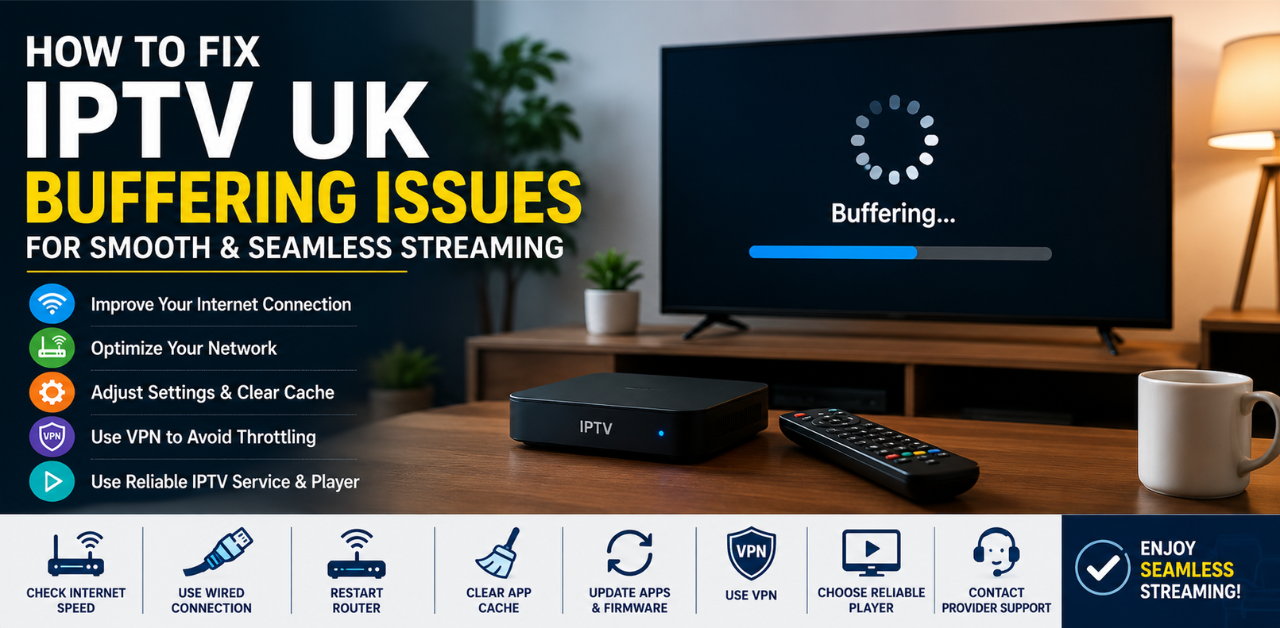
How to Fix IPTV UK Buffering Issues for Smooth & Seamless Streaming
How to Fix IPTV UK Buffering Issues for Smooth & Seamless Streaming
IPTV has transformed the way people in the UK watch television. From live sports and movies to international channels and on-demand content, IPTV services provide flexibility and affordability that traditional cable TV often cannot match. However, one frustrating issue continues to affect many viewers: buffering.
If you've ever experienced endless loading circles during a football match or your favorite TV series freezing every few minutes, you know how annoying IPTV buffering can be. Fortunately, there are many effective solutions available. In this complete guide on How to Fix IPTV UK Buffering Issues for Smooth & Seamless Streaming, you’ll discover practical methods that can dramatically improve your IPTV experience.
This guide is for buffering that is already happening. First identify whether the problem affects one channel, one player or all streaming apps, and change only one setting at a time so you can tell which step made a difference.
Understanding IPTV Buffering Problems
Buffering occurs when your IPTV player cannot download video data fast enough to maintain smooth playback. Streaming apps temporarily store chunks of video content in a cache. When the incoming data becomes slower than the playback speed, the stream pauses to load more content.
This issue can happen occasionally due to network congestion, but frequent buffering usually indicates a deeper technical problem.
Signs of IPTV Buffering
Constant loading circles
Frozen screens
Audio-video sync issues
Reduced video quality
Sudden stream interruptions
Understanding the root cause is the first step toward fixing the issue permanently.
Common Causes of IPTV UK Buffering
Several factors contribute to IPTV buffering problems. Some are related to your home network, while others come from the IPTV provider itself.
Weak Internet Connection
The most common reason for IPTV buffering is insufficient internet speed. IPTV streams, especially HD and 4K channels, require stable bandwidth.
If multiple people in your household are gaming, downloading files, or streaming Netflix simultaneously, your IPTV service may struggle.
Overloaded IPTV Servers
Sometimes the issue has nothing to do with your internet. IPTV providers can experience server overload during peak viewing hours, especially during live sports events.
Cheap or unreliable IPTV services often lack the infrastructure needed for stable streaming.
Possible Network Traffic Management
In some circumstances an internet provider may apply traffic management, but buffering by itself does not prove that traffic is being throttled. Congestion, Wi-Fi interference and problems at the streaming source can look similar.
Before attributing a problem to your provider, compare several lawful streaming services, test at different times and check for local network or device problems.
Outdated Streaming Devices
Older streaming devices often lack the processing power needed for modern IPTV streams.
Devices with limited RAM or outdated firmware can struggle to decode high-definition content efficiently.
Check Your Internet Speed First
Before changing IPTV settings, test your internet speed using a reliable speed-testing platform such as:
Quick buffering diagnosis: test before changing settings
- Check the scope: Does just one stream freeze, or do several apps struggle?
- Check the connection: Run a speed test, then compare Wi-Fi with Ethernet where possible.
- Check the device: Restart the player, update the app and check whether storage or memory is constrained.
- Isolate the cause: If every app buffers, investigate the local network or broadband. If only one authorised stream fails while other services work, contact that service's support with the time and device details.
Ideal Speeds for IPTV Streaming
Streaming Quality | Recommended Speed
SD Streaming | 5 Mbps
HD Streaming | 10 Mbps
Full HD Streaming | 20 Mbps
4K Streaming | 35+ Mbps
For households with multiple connected devices, higher speeds are recommended.
These figures are planning examples, not universal streaming requirements. Actual bandwidth depends on source bitrate, compression, resolution, network conditions and concurrent viewers.
Use a Wired Ethernet Connection
Wi-Fi is convenient, but Ethernet provides a more stable connection.
A wired Ethernet connection:
Reduces latency
Prevents signal interference
Delivers consistent speeds
Improves IPTV stability
If possible, connect your IPTV box, Firestick adapter, or Smart TV directly to your router using an Ethernet cable.
Optimize Your Wi-Fi Network
If Ethernet is not an option, improving your Wi-Fi setup can significantly reduce buffering.
Switch to 5GHz Wi-Fi
Modern routers support both 2.4GHz and 5GHz frequencies.
Frequency | Advantages | Disadvantages
2.4GHz | Better range | Slower speeds
5GHz | Faster speeds | Shorter range
For IPTV streaming, 5GHz is usually the better choice.
Reduce Network Congestion
Too many connected devices can overwhelm your network.
Try disconnecting:
Unused smartphones
Gaming consoles
Smart home devices
Background downloads
This frees up bandwidth for IPTV streaming.
Restart Your IPTV Device and Router
It may sound simple, but rebooting devices often solves temporary glitches.
How to Properly Restart
Turn off your IPTV device
Unplug your router for 60 seconds
Restart the router
Turn your IPTV device back on
This clears temporary memory issues and refreshes network connections.
Clear IPTV App Cache Regularly
IPTV apps store temporary files that can become corrupted over time.
Benefits of Clearing Cache
Faster app performance
Reduced freezing
Better stream loading
Lower memory usage
On Android-based devices:
Open Settings
Go to Apps
Select IPTV app
Choose “Clear Cache”
Avoid clearing app data unless necessary because it may remove your login settings.
Update IPTV Apps and Firmware
Outdated software can create compatibility problems.
Always keep updated:
IPTV apps
Streaming device firmware
Smart TV software
Router firmware
Manufacturers regularly release updates to improve streaming performance and security.
Use a Reliable IPTV Player
Not all IPTV players perform equally.
Some popular IPTV players include:
For one player-specific example, read our IPTV Smarters Pro setup walkthrough.
IPTV Smarters
TiviMate
Perfect Player
VLC Media Player
Kodi
Features to Look For
Fast channel switching
Adjustable buffer settings
EPG support
Stable playback engine
A poorly optimized IPTV player can cause buffering even with a good internet connection.
Change IPTV Streaming Format
Many IPTV services support different streaming protocols.
Common IPTV Formats | Format Advantages
HLS | More stable
MPEGTS | Lower latency
RTSP | Fast streaming
If buffering occurs frequently, switching from MPEGTS to HLS can improve stability.
You can usually change this setting within your IPTV app.
When a VPN May Affect Streaming Performance
A VPN encrypts traffic between your device and its VPN server, but the additional routing can increase latency and reduce throughput. It is not a guaranteed fix for buffering or proof that an ISP is restricting traffic.
Benefits of a VPN
May change routing in particular circumstances; results vary.
Improved privacy
Follow the applicable content rights and geographic availability terms.
Compare playback results; additional routing may also make buffering worse.
Popular VPN providers include:
NordVPN
ExpressVPN
Surfshark
Test Whether a VPN Actually Helps
If you already use a VPN, compare the same authorised stream on the same device with the VPN on and off. Keep other conditions unchanged before judging performance.
Fast UK servers
Unlimited bandwidth
No-logs policy
Streaming optimization
Low latency
Free VPNs often worsen buffering due to overcrowded servers.
Adjust IPTV Buffer Size Settings
Some IPTV apps allow manual buffer adjustments.
Increasing the buffer size gives the app more time to preload content before playback.
Recommended Buffer Sizes
Connection Speed | Suggested Buffer
Slow internet | Large buffer
Medium internet | Medium buffer
Fast internet | Small buffer
Experiment with settings to find the best balance between loading speed and smooth playback.
Avoid Peak Streaming Hours
During evenings and major sporting events, IPTV servers experience heavy traffic.
Peak Hours in the UK
6 PM – 11 PM weekdays
Weekend football matches
Major live events
If possible, test your IPTV service outside peak hours to identify whether server overload is the issue.
Upgrade Your Streaming Device
Low-end streaming devices often struggle with IPTV performance.
Recommended IPTV Devices | Device Advantages
Amazon Firestick 4K | Affordable and powerful
NVIDIA Shield TV | Premium performance
Formuler Z11 Pro | IPTV-focused features
Chromecast with Google TV | Easy setup
Modern devices support better decoding and faster processing.
Choose a Reliable IPTV Provider
Not all IPTV providers are equal.
A Good IPTV Provider Should Offer
High server uptime
Multiple server locations
Anti-freeze technology
Stable HD channels
Responsive support
Extremely cheap IPTV services often suffer from constant buffering and downtime.
Research customer reviews before subscribing.
To assess the service beyond buffering symptoms, use the IPTV provider comparison checklist.
Troubleshooting IPTV on Firestick
Amazon Firestick devices are widely used for IPTV streaming.
If you are configuring the device for the first time, see the Firestick installation guide.
Common Firestick Fixes
Clear app cache
Remove unused apps
Restart Firestick
Use external power adapter
Disable background apps
Firesticks with low storage can experience severe buffering problems.
Troubleshooting IPTV on Smart TVs
Smart TVs may have limited memory compared to dedicated streaming devices.
Smart TV Optimization Tips
Update TV firmware
Restart TV regularly
Use Ethernet connection
Remove unused apps
Lower stream resolution if necessary
Older Smart TVs may struggle with 4K IPTV streams.
Security and Legal Considerations
When using IPTV services, safety matters.
Protect Yourself Online
Use trusted IPTV providers
Avoid suspicious apps
Install antivirus protection
Use strong passwords
Enable VPN encryption
In the UK, IPTV legality depends on whether the provider has proper broadcasting rights.
Always ensure you comply with local laws and regulations.
Frequently Asked Questions
Why does my IPTV buffer even with fast internet?
Buffering may occur due to overloaded IPTV servers, ISP throttling, outdated devices, or poor Wi-Fi stability.
Is a VPN necessary for IPTV streaming?
A VPN is not normally needed for ordinary video playback. It may change routing in some cases, but it can also reduce speed; test rather than assuming it prevents buffering.
What internet speed is best for IPTV?
For stable HD IPTV streaming, at least 10 Mbps is recommended. For 4K streaming, 35 Mbps or higher works best.
Does Wi-Fi cause IPTV buffering?
Yes. Weak Wi-Fi signals, interference, and congestion can all lead to buffering issues.
Which IPTV player is best for reducing buffering?
TiviMate, IPTV Smarters, and VLC Media Player are popular choices known for stable playback.
Can old routers affect IPTV streaming?
Absolutely. Older routers may not support modern bandwidth demands or advanced Wi-Fi standards.
Should I use Ethernet instead of Wi-Fi?
Yes. Ethernet provides more stable speeds and lower latency, making it ideal for IPTV streaming.
Conclusion
Repeated buffering is frustrating, but its cause can be difficult to isolate. Checking network stability, device software, player settings and the streaming source can help identify where the issue occurs; not every fault can be fixed from your home network.
For current subscription details, see our IPTV UK plans. The diagnostic steps above can help identify buffering, but a home-network change cannot guarantee playback when the streaming source itself is unavailable.
Start with the basics:
Test your internet speed
Use Ethernet when possible
Clear app cache
Update your devices
Compare VPN-on and VPN-off performance only if you already use one.
Small changes often produce major improvements.
For more networking and streaming guidance, visit:
